
How to add and arrange your sites in KC
KC comes with 25 adult video and live-cam sites, always on your Home page. Add any other public website, put your sites in the order you like, and bring back a website you removed.
Try KC for Mac freeNo registration needed for the installer. Apple Silicon, macOS 12 or later. Adults 18+ only. This guide covers KC 1.0.
Quick answer
Open Platforms in the sidebar and select Add website: type a name and the site's https address, then Save. On the Home page, drag a site's circle to move it. Built-in sites always stay on Home; right-click a website you added to move or remove it, and use + to put it back.
The Platforms page
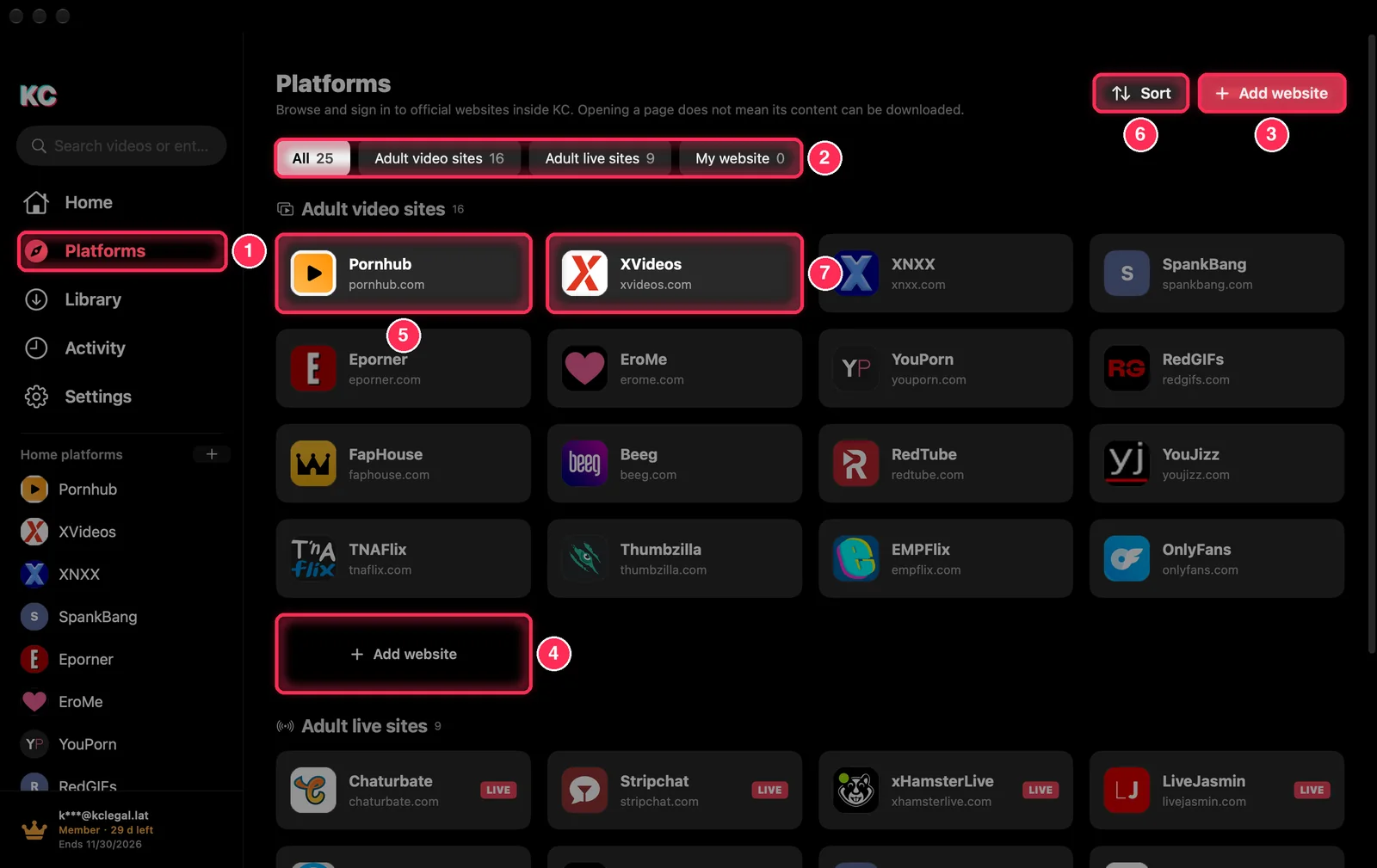
- Platforms in the sidebar (⌘ 2).
- Show All sites, only Adult video sites, only Adult live sites or My website (the ones you added). Removed platforms appears here when you have removed one.
- Add website: see step 2.
- The same Add website, at the end of the video sites.
- A site. Click it to open the site in KC's built-in browser, where you can sign in to it. Right-click for Open in new tab; for sites you added, also moving it between the video and live rows, Remove from recommendations, Edit website and Delete website.
- Sort opens Arrange platforms: move each site earlier or later with the arrows, or Restore default order. Changes are saved at once.
- Or drag a card into place.
Add a website
- Select Add website on the Platforms page (or + beside Home platforms in the sidebar, then Add another website).
- Type a Name (up to 40 characters) and the Address, for example https://example.com.
- Select Save. The site appears under My website; added from the sidebar, it also goes to the front of Home.
Only public HTTPS websites can be added, up to 100 of them, and a site already in the list is not added twice. Opening a site in KC does not mean its videos can be downloaded.
Arrange the sites on Home
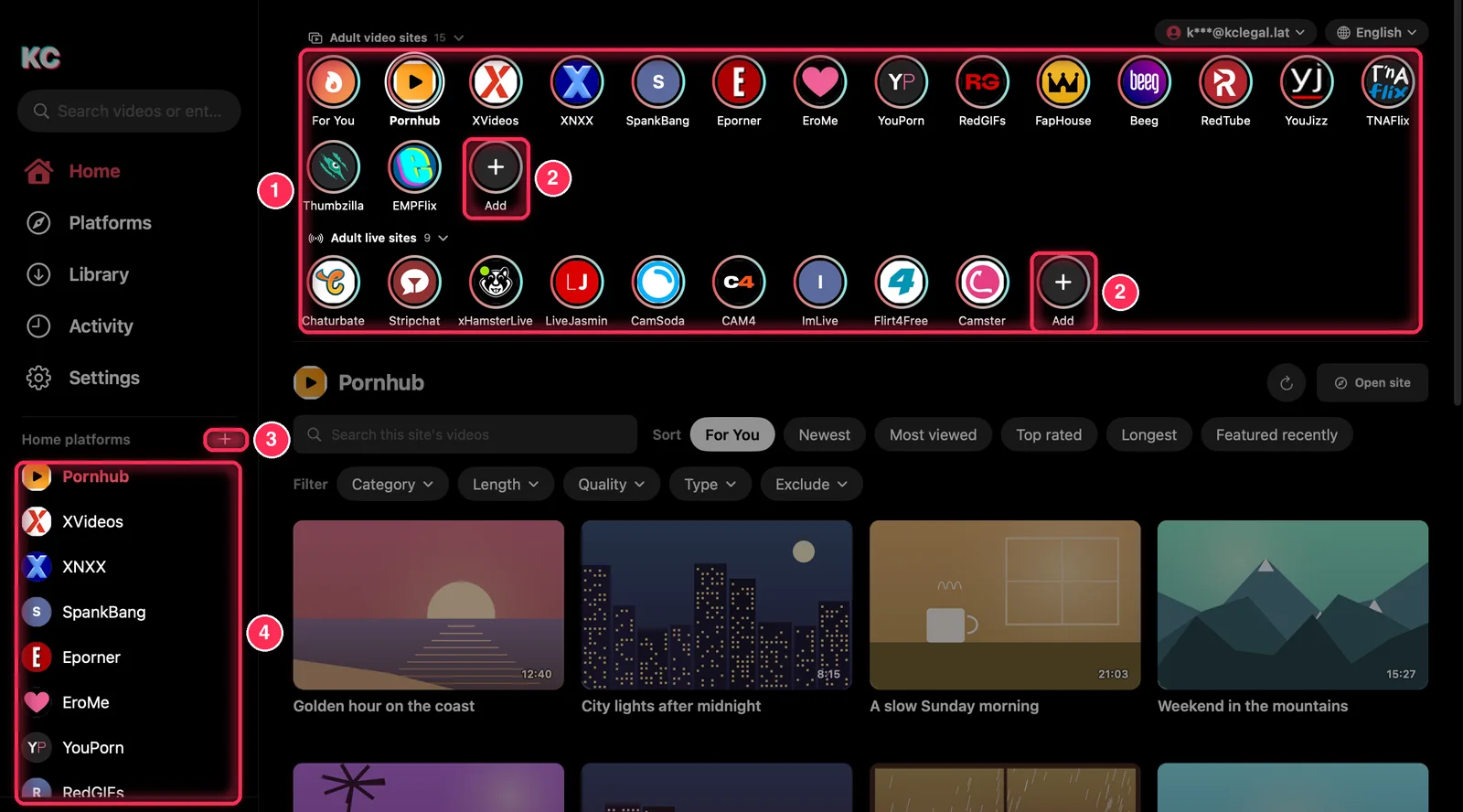
- Your sites, in two rows: Adult video sites and Adult live sites. Each row shows all of its built-in sites, which always stay there, and up to ten websites you added. Click a site to show its videos, or click a row's title to fold or unfold it. Drag a circle to move it, or right-click it to move it earlier or later; a website you added can also move to the other row or come off Home.
- Add at the end of each row: put back or delete a website under Removed platforms, bring one of your websites from More platforms to the front, Add another website or Reorder.
- + beside Home platforms in the sidebar offers the same choices.
- Home platforms: the sites on Home, one click away. Point at a website you added and click the minus button (Remove from Home), or right-click it to move it to the other row. Built-in sites have no minus button.
Restore a removed website
Built-in sites cannot be removed. A website you added and then removed from Home (or from recommendations) is hidden, not deleted. To bring it back, use Add → Removed platforms on Home, the Removed platforms filter on the Platforms page and its Restore button, or Settings → Hidden sites.
Settings → Content preferences also shows or hides each website you added with a switch (the switches of built-in sites are always on), and LIVE does the same for the live sites.
Common questions
Can I remove a built-in site?
No. The 25 built-in sites always stay on Home in their own row; OnlyFans is on the Platforms page only. You can still change their order, and fold a whole row by clicking its title.
Do I sign in to the sites inside KC?
Yes, if you want to. Open the site from the Platforms page and sign in as you would in Safari. The sign-in stays on your Mac; the browser's ⋯ menu has Clear this site's sign-in.
Why can I not add a site?
The address must start with https:// and be a public website. You can add up to 100 websites.
Why does a live site have no video list?
Some live-cam sites only work on their own pages, so KC opens them as websites. You watch them there.