
How to save a video from a website on Mac
Six short steps, each with a picture of KC: sign in, open the site, play the video, select Download, pick the quality and find the finished video in your Library.
Try KC for Mac freeNo registration needed for the installer. Apple Silicon, macOS 12 or later. Adults 18+ only. This guide covers KC 1.0.
Quick answer
Open the site from the KC Home page, click a video, then select Download in the panel beside the player and pick a quality. The video appears under Downloading in your Library and moves to Completed when it is saved.
What success looks like: the video plays from your Library with picture and sound while your Mac is offline.
Before you start
- KC on an Apple Silicon Mac with macOS 12 or later. You must be 18 or older.
- A free KC account (during its 7-day trial) or a membership to download.
- Only save videos you have the right to keep. Sites keep their own terms, sign-in and age checks; KC never answers them for you.
- Free disk space for the video.
Sign in

- The account at the bottom of the sidebar. When you are signed out it reads Sign in to KC; click it and choose Sign in or sign up. Signed in, it shows how many downloads are left today, or that you are a member.
You can also wait: the first time you select Download while signed out, KC asks you to sign in. Choose Later to keep browsing.
Open the site and pick a video
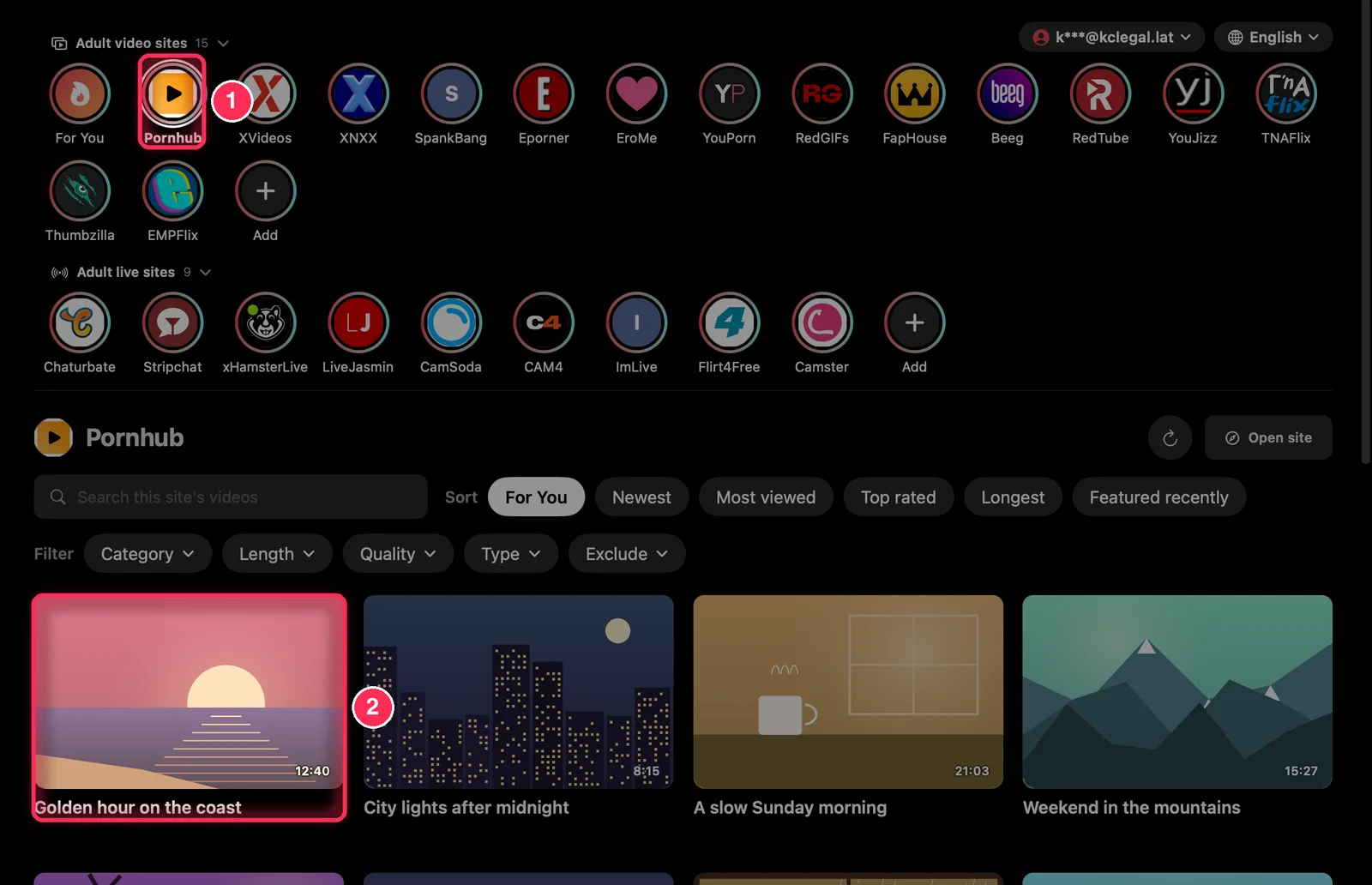
- Click a site's circle at the top of the Home page (or the site under Home platforms in the sidebar). Its latest videos load below.
- Click a video. It opens in the KC player, with the next videos of the list queued.
Select Download
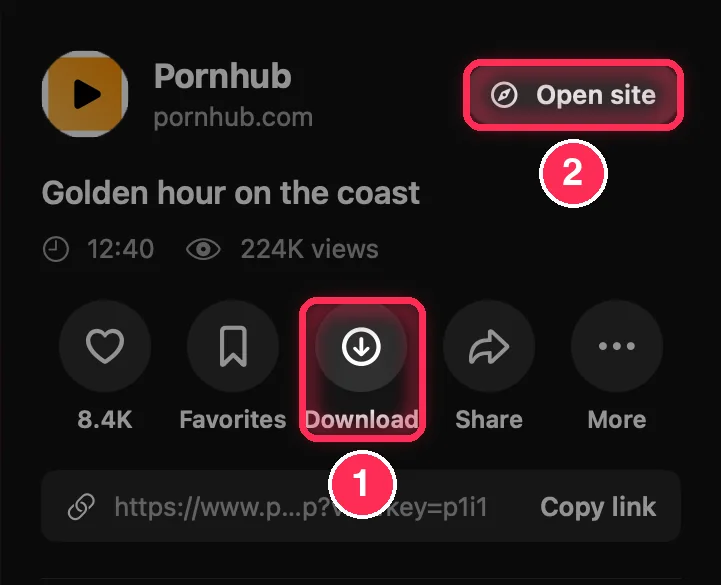
- Download. Its label then shows the progress: Added to downloads, then the percentage and speed, then Downloaded.
- Open site. If the site asks you to sign in or confirm your age before it shows the video, do it there, then come back and try again.
Choose the quality
When the video comes in more than one quality, a small window titled Choose Download Quality opens under the button. The first line, Highest quality with its height (for example 1080p), is the default; the other heights follow. Higher quality means a larger file. Click one and the download starts.
When the site offers only one quality, there is nothing to choose and the download starts at once.
Follow the download
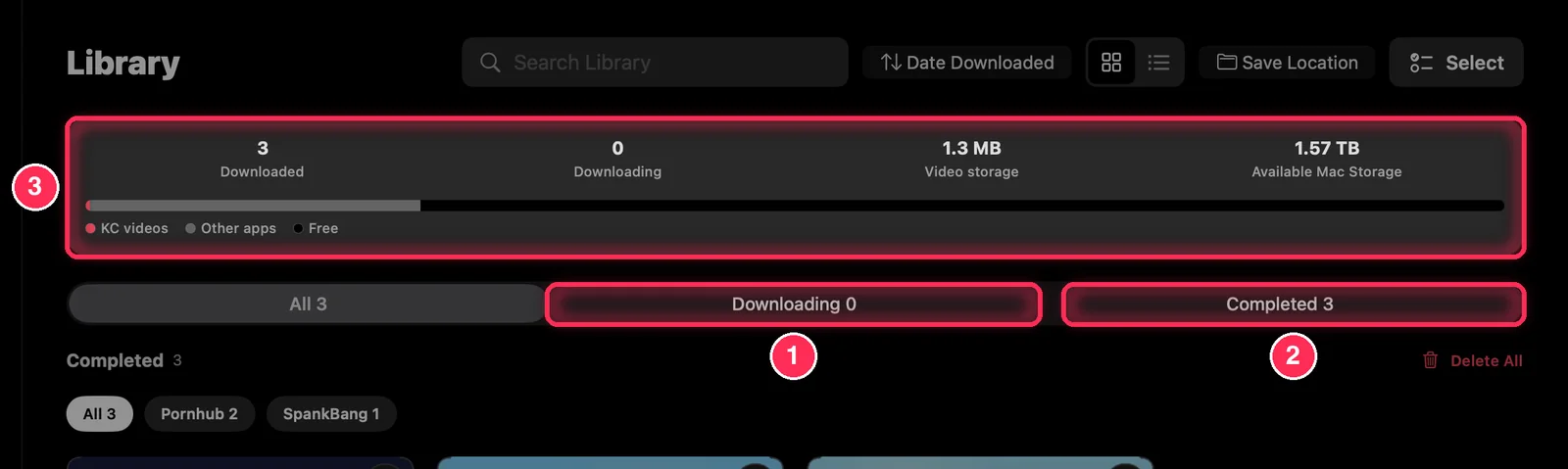
- Downloading lists the videos still on their way, each with its percentage, size, speed and time left. Pause or resume one, or use Pause all and Resume all.
- Completed lists the saved videos. Click one to play it.
- The summary: videos downloaded, still downloading, the space your videos use and the space left on your Mac.
KC downloads two videos at a time; the others wait their turn. To stop a download, delete it: an unfinished download that you delete is not counted. Turn on the "Download finished" notification in Settings if you want to be told.
Save from a web page (built-in browser)
Sites you open from the Platforms page, and addresses you type in the sidebar, open in KC's built-in browser. To save a video there:
- Start playing the video on the page.
- Select Download video in the toolbar (it turns red and shows a count once KC finds a video).
- The Page videos window lists each video found with its resolution, type, length and server. Choose the one that belongs to the page and select Download; a progress bar shows the rest.
- Select Done (or press Esc) to close the window. The video is in your Library.
If the list is empty, play the video first and try again; some sites only show their videos after you sign in.
Download settings
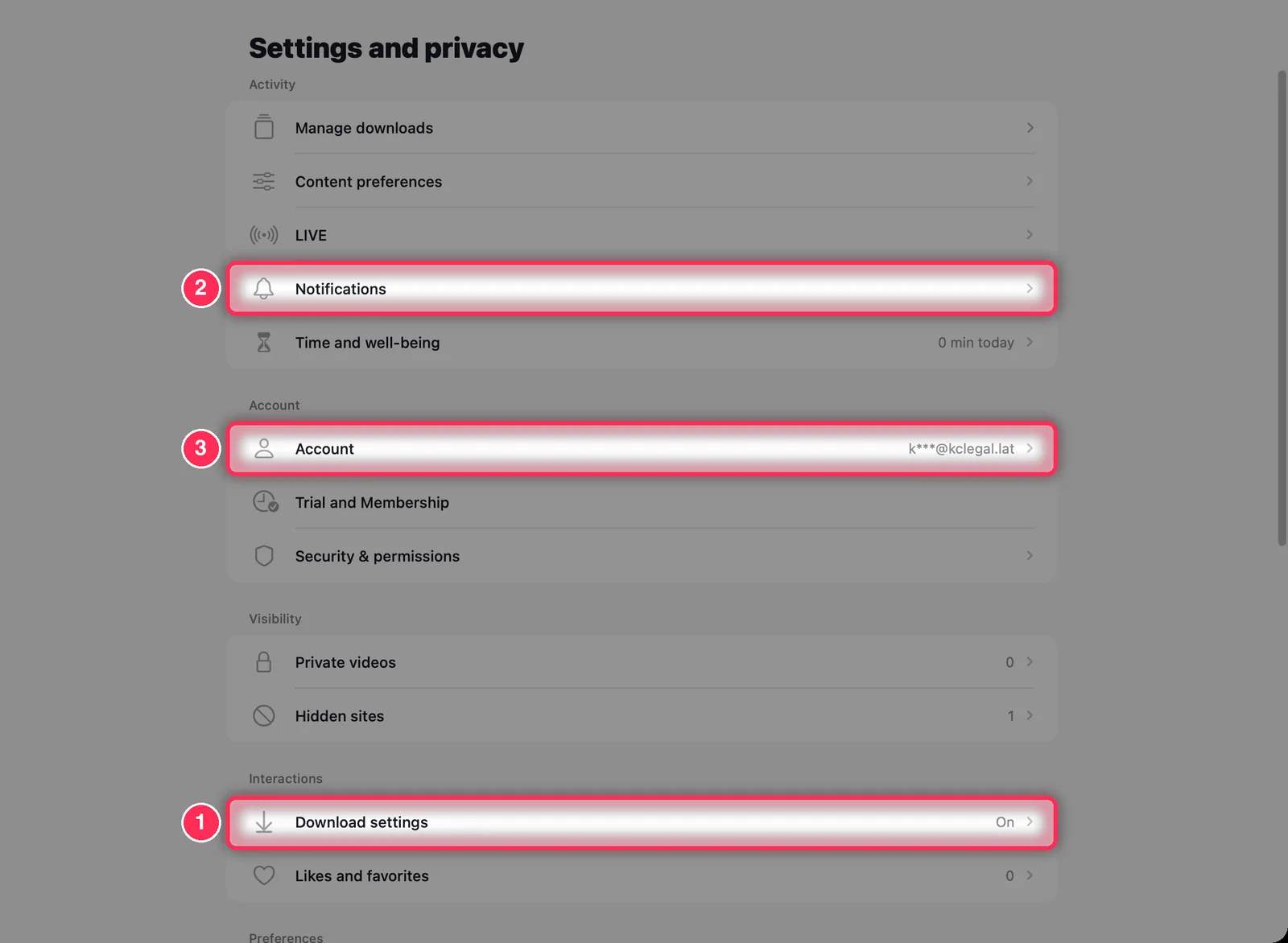
- Download settings: download on Wi‑Fi only, choose the save location and keep a folder per site.
- Notifications: be told when a download finishes.
- Account: today's downloads left, membership, and signing in or out.
Daily download limit
Common questions
Can KC save videos from every site?
No. It depends on the site and the video; some pages offer no downloadable stream. Live streams can be watched but not saved.
Do I need an account?
Installing needs no account, and you can browse and watch for 24 hours without one. Downloads need a free KC account (during its 7-day trial) or a membership.
Where is the video stored?
In the KC video library on your Mac by default. With Save Location at the top of the Library (or in Settings) you can save MP4 files to Downloads/KC-X or a folder you choose instead. Nothing is uploaded.