
Privacy, history and settings in KC
What KC keeps on your Mac, where to find it and how to lock it away or clear it. Nothing you watch or save is uploaded.
Try KC for Mac freeNo registration needed for the installer. Apple Silicon, macOS 12 or later. Adults 18+ only. This guide covers KC 1.0.
Quick answer
Your history, likes, favorites and private videos are on the Activity page. Turn on App lock in Settings → Security & permissions to open KC only with Touch ID or your Mac login password, and use Make private on a video to keep it out of the Library.
The Activity page
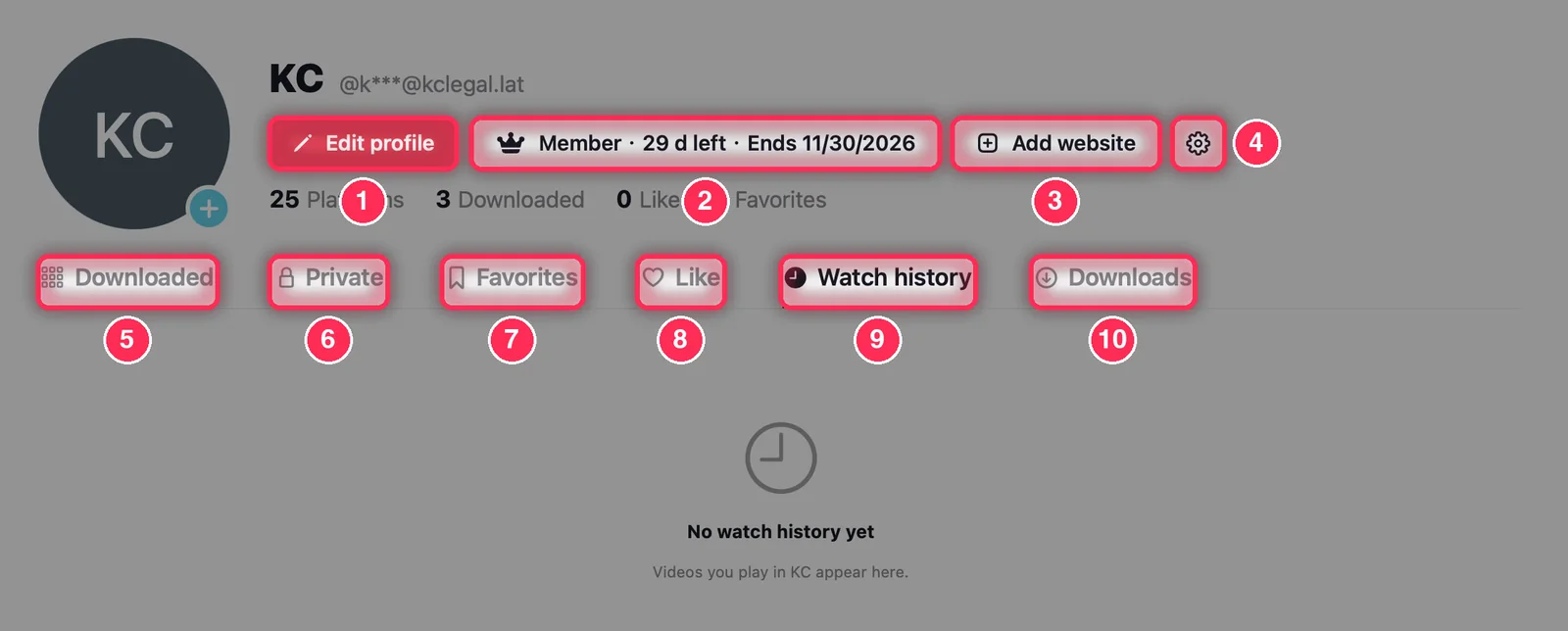
- Edit profile: the name and picture shown on this page, on your Mac only.
- Your downloads left today, or your membership. Click it for your account and membership.
- Add website.
- Settings.
- Downloaded: your saved videos, with the Library's sort choices.
- Private: private videos, after Touch ID or your Mac login password.
- Favorites: the videos you saved with Favorites in the player.
- Like: the videos you liked.
- Watch history: what you played in KC; Clear watch history empties it.
- The last tab, the download log, lists every download with its site, date and size.
Settings and privacy
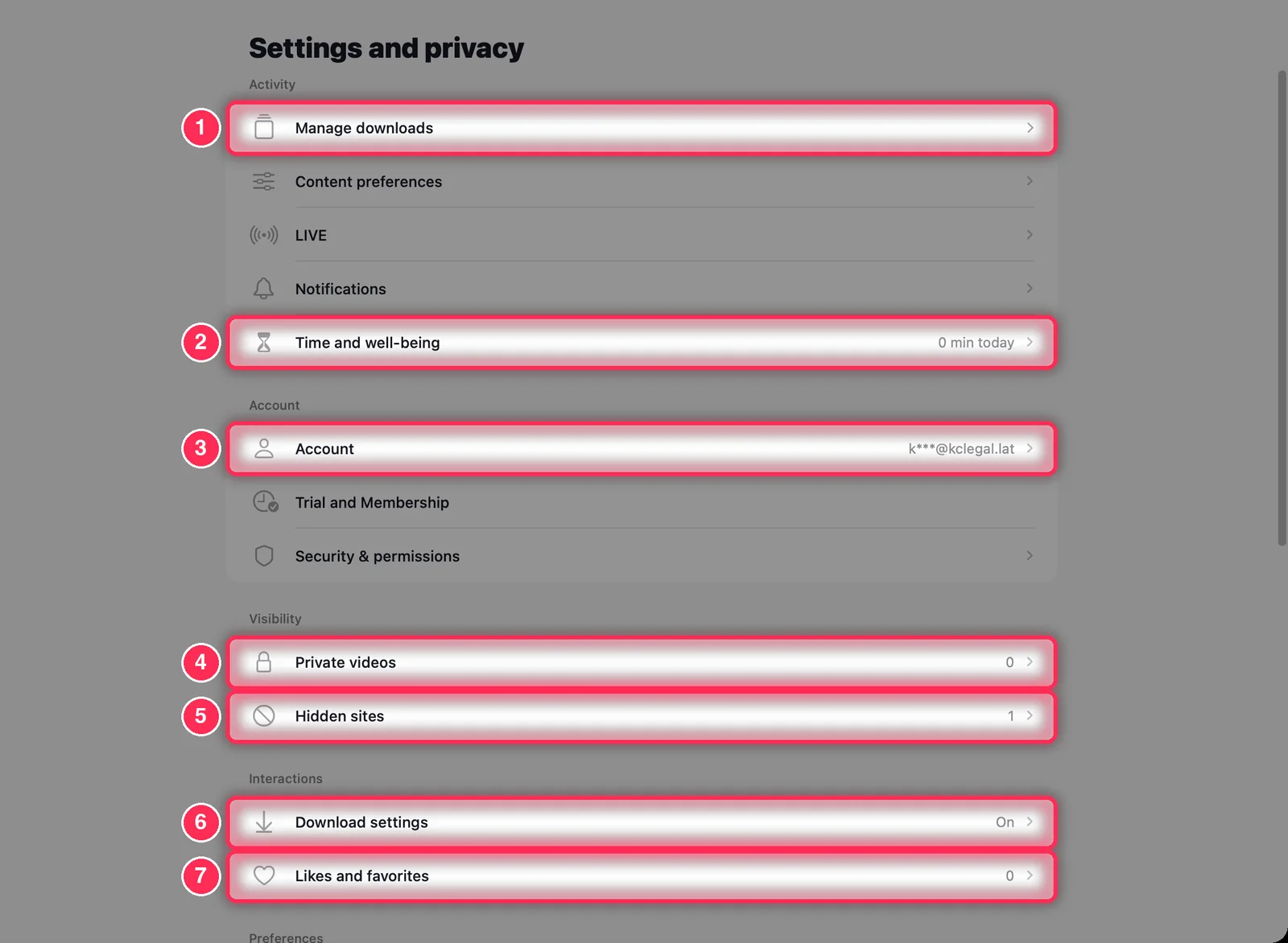
- Manage downloads opens the Library.
- Time and well-being: a daily screen-time reminder and a break reminder.
- Account: downloads left today, membership, Manage account and orders on the web, signing in and out. Security & permissions is just below; see step 3.
- Private videos: see and restore your private videos.
- Hidden sites: sites you removed, with Restore.
- Download settings: Wi‑Fi only, save location, folder per site.
- Likes and favorites: see them, or Clear likes and Clear favorites.
Lock KC
In Settings → Security & permissions, turn on App lock. KC then opens only after Touch ID or your Mac login password (Unlock KC). Turn on Cover the window when you switch apps to hide the window's content while you are in another app.
Private videos
Right-click a saved video and choose Make private (or Select several in the Library). Private videos leave the Library and show only under Private on the Activity page; KC asks you to Verify to view each time. Make all public again puts them back. Delete All in the Library keeps private videos; Settings → Free up space → Delete All Downloaded Videos deletes them too.
Clear history and sign-ins
- Settings → Privacy center: Clear watch history and Clear site sign-ins and browsing data.
- In the built-in browser, the ⋯ menu → Clear this site's sign-in for one site.
- Settings → Likes and favorites: Clear likes, Clear favorites.
- Settings → Free up space: Clear cache.
Playback, language and appearance
- Playback: Default playback speed, Playback quality (Smooth (720p) or HD (1080p)), Mute when a video opens, Auto-play next and Preload videos.
- Data Saver plays videos at up to 480p.
- Language: KC in English, Chinese, French, Russian, Spanish or Arabic.
- Display: Use device setting, Light or Dark. Accessibility: Reduce motion.
- Check for Updates (also in the KC menu). KC checks by itself a few seconds after it opens and offers new versions.
Common questions
Is anything I watch uploaded?
No. Your watch history, likes, favorites, downloaded and private videos and settings stay on your Mac. KC's account service only handles your email, sign-in, membership and daily download count, and KC also contacts the KC website for support and update checks. The websites you open receive normal connection information, as with any browser.
Is there a private browsing mode?
There is no separate mode. Use App lock, private videos and Clear watch history, and clear a site's sign-in when you are done with it.
I forgot the lock. How do I open KC?
The lock uses your Mac's own Touch ID or login password; there is no separate KC passcode to forget.