
How to browse, search and play videos in KC
Each site's own videos, with its search, sort and filters, in one window; a desktop player you can drive from the keyboard; and a built-in browser for everything else.
Try KC for Mac freeNo registration needed for the installer. Apple Silicon, macOS 12 or later. Adults 18+ only. This guide covers KC 1.0.
Quick answer
On the Home page, click a site's circle, then use Search this site's videos, the Sort buttons and the Filter menus. Click a video to play it; press ↑ ↓ for the previous or next one and Esc to close.
Browse a site
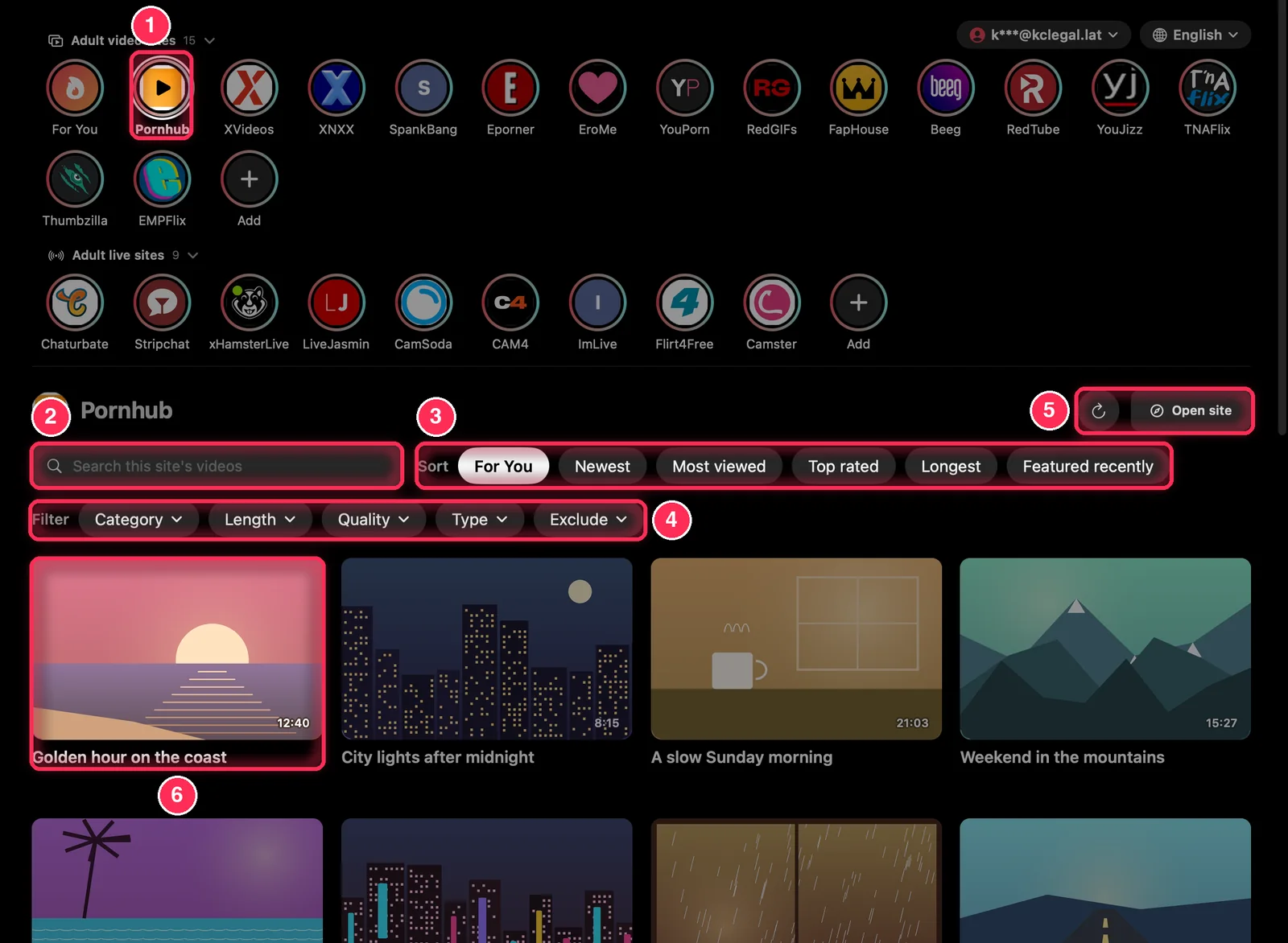
- Choose a site at the top. Its newest videos load below, and more load as you scroll.
- Search this site's videos searches that site (⌘ F).
- Sort: the orders the site itself offers (see the table below). Some sites add a Time row: Today, This week, This month, All time.
- Filter: menus such as Category, Length, Quality and Type; Clear Filters resets them.
- Refresh the list (⌘ R), or Open site to see the site's own page.
- A video: click to play. Right-click for Play, Download, Like, Favorites, Share, Copy link and Open in browser.
| Site | Sort |
|---|---|
| Pornhub | For You, Newest, Most viewed, Top rated, Longest |
| XVideos | For You, Newest, Most viewed, Top rated, Longest |
| Eporner | Newest, Most viewed, Top rated, Hot this week, Longest |
| XNXX | Today's picks, Most viewed, Top rated |
| SpankBang | For You, Newest, Most viewed |
| EroMe | For You, Newest |
| Chaturbate | For You, Women, Couples, Men, Trans |
| Stripchat | Women, Couples, Men, Trans |
Live-cam sites show rooms instead of videos and sort them by category; LiveJasmin and CamSoda open on their own pages.
Search from the sidebar
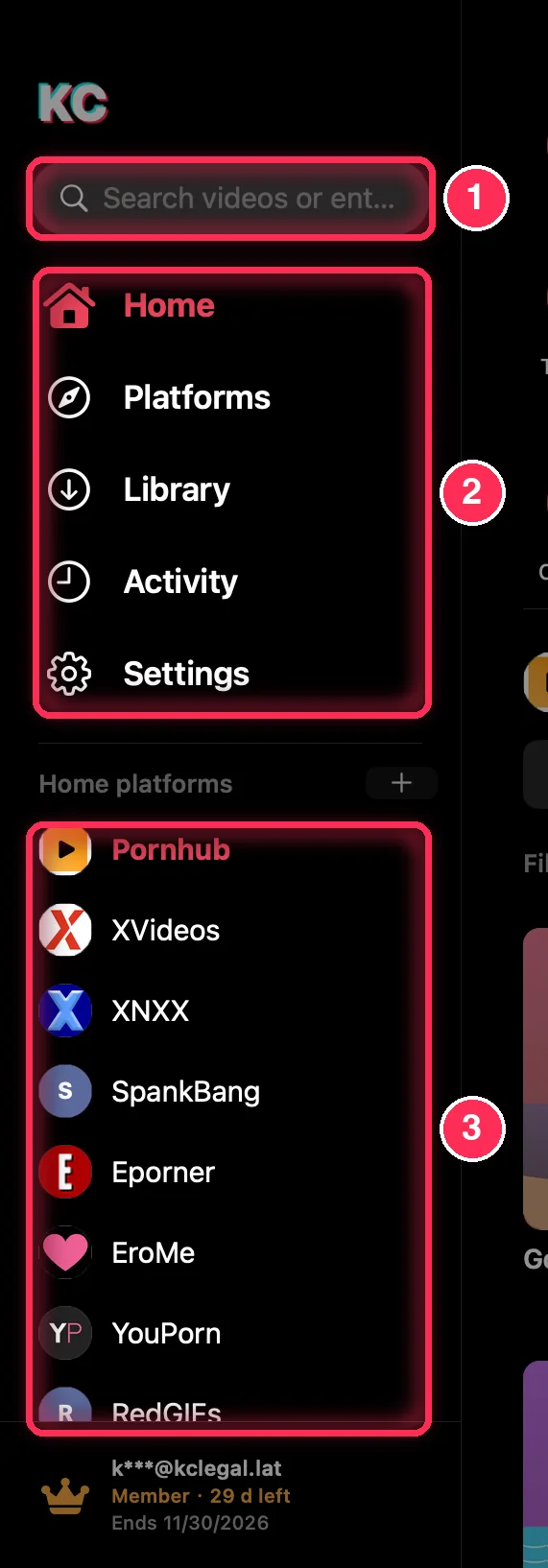
- Search videos or enter a website: words search the site selected on Home; an address (with a dot, or starting with https://) opens that page in the built-in browser. Press ⌘ L to jump here.
- The pages: Home, Platforms, Library, Activity and Settings (⌘ 1 to ⌘ 4 open the first four). Browsing now appears above them while web pages are open.
- Home platforms: your sites, one click away.
Use the player
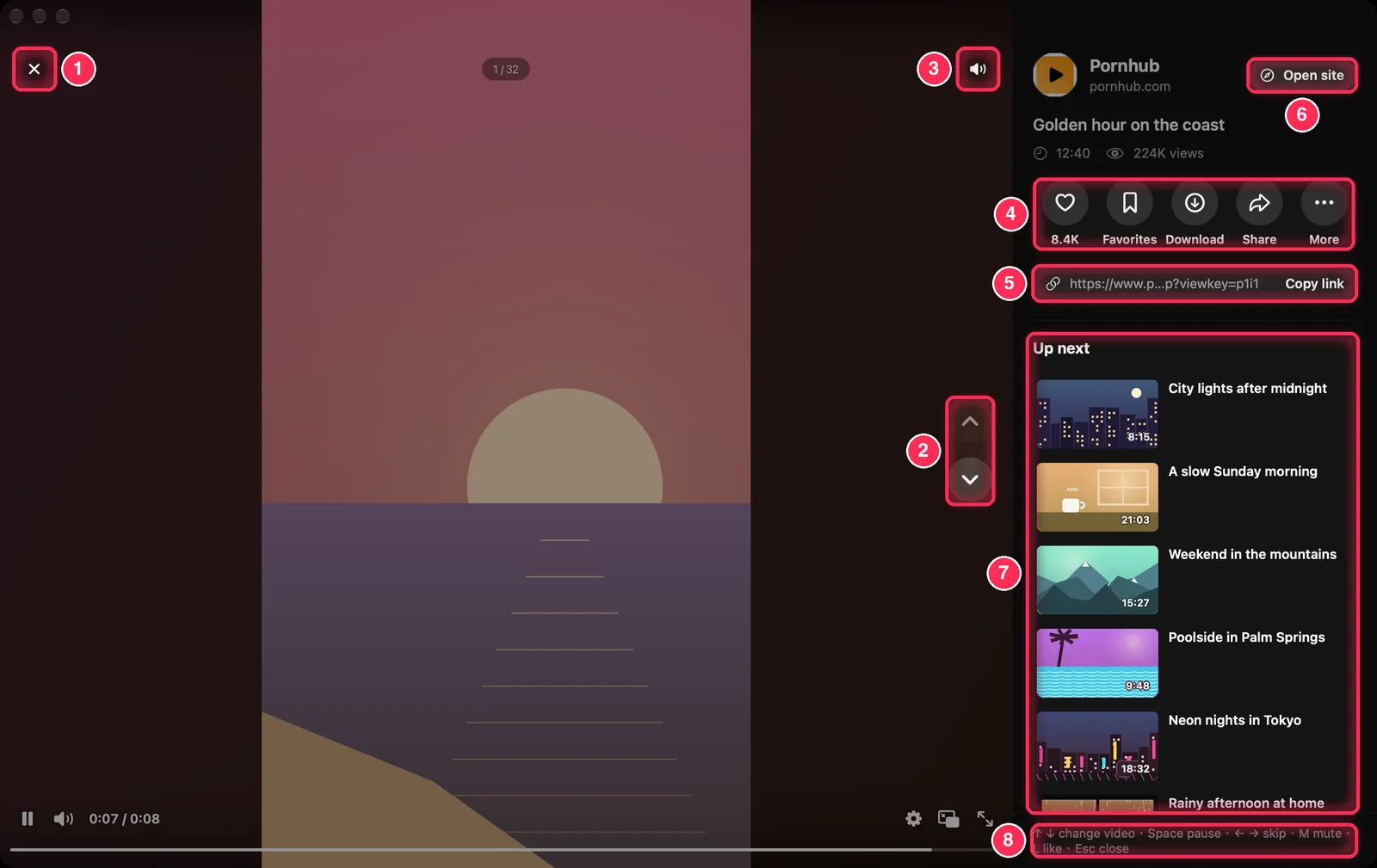
- Close the player (Esc).
- Previous and next video (↑ ↓, or swipe).
- Sound on or off (M).
- Like (with the site's count when it shows one), Favorites, Download, Share and More.
- The video's address with Copy link.
- Open site opens the video's page on the site.
- Up next: the next videos; click one to jump to it.
- A reminder of the keys.
Click the video to pause, double-click to like, and hold the mouse button down to play at 2× while you hold it.
Quality, speed and full screen
Point at the video to show its controls. The ⚙︎ button opens Quality and Speed: Quality (Automatic or a height such as 1080p, when the site offers several) and Playback speed (0.5× to 2×). Beside it are Picture in Picture and Full Screen.
More in the panel has the same choices plus Fill screen, System player, AirPlay, Open in browser and Copy link. Your default speed and quality, muting and Auto-play next are in Settings → Playback.
The built-in browser
Sites opened from the Platforms page, and addresses you type in the sidebar, open in KC's built-in browser, with Back, Forward, Reload, the address and Download video in its toolbar. Open pages stay listed under Browsing now in the sidebar. Select Leave Website or press Esc to go back to KC.
To save a video from a web page, see Save from a web page.
Keyboard shortcuts
| Keys | What they do |
|---|---|
| ↑ ↓ | Previous or next video (a trackpad swipe or the mouse wheel also works) |
| Space | Play or pause (or click the video) |
| ← → | Skip back or forward 10 seconds |
| M | Mute or unmute |
| L | Like (or double-click the video) |
| Esc | Close the player, leave the built-in browser or close a window |
| ⌘ 1 ⌘ 2 ⌘ 3 ⌘ 4 | Home, Platforms, Library, Activity |
| ⌘ L | Open an address |
| ⌘ F | Search this site's videos, or the Library |
| ⌘ R | Reload the page or the Home list |
| ⌘ , | Settings |
| ⌘ W | Close the window; KC keeps running and downloading (click its Dock icon to return) |
Common questions
Why does a site show no search or filters?
KC offers the search, sort and filters the site itself has. Some live-cam sites have none.
Do I need to sign in to browse?
Not for the first 24 hours: you can browse and watch without an account. A free KC account gives 7 days from sign-up; after that, KC needs a membership. Sites that ask you to sign in or confirm your age do so on their own pages.
Where do videos I watched go?
Nowhere outside your Mac. They are listed under Watch history on the Activity page, which you can clear.