
How to watch saved videos offline on Mac
Everything you save with KC stays on your Mac. These steps show where to find it, how to sort it like Finder, where the files go and how to keep some videos private.
Try KC for Mac freeNo registration needed for the installer. Apple Silicon, macOS 12 or later. Adults 18+ only. This guide covers KC 1.0.
Quick answer
Open Library in the sidebar (or press ⌘ 3) and click a video: it plays from your Mac with no connection and no sign-in. Use the sort button or the list's column headers to order videos like Finder, and Save Location to keep MP4 files in a folder you choose.
Open your Library
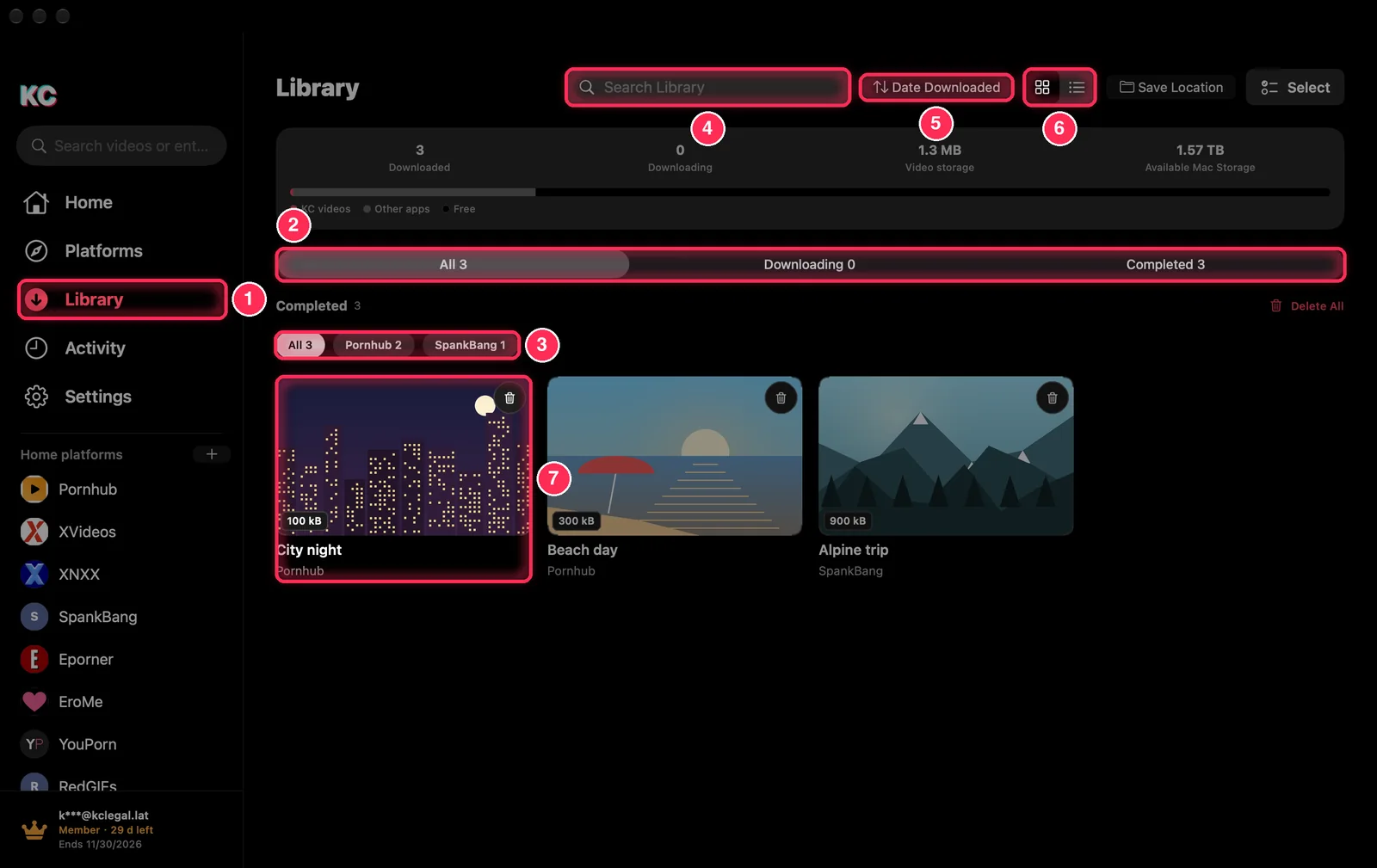
- Library in the sidebar. A badge shows how many downloads are running.
- All, Downloading and Completed, with their counts.
- One site at a time: the site buttons above the videos, with how many you saved from each.
- Search Library finds videos by title (⌘ F).
- The sort button shows the current order; see step 2.
- Grid or List view.
- A video: click to play, right-click for more (Play, Show in Finder, Make private, Open in browser, Delete).
Sort and group, like Finder
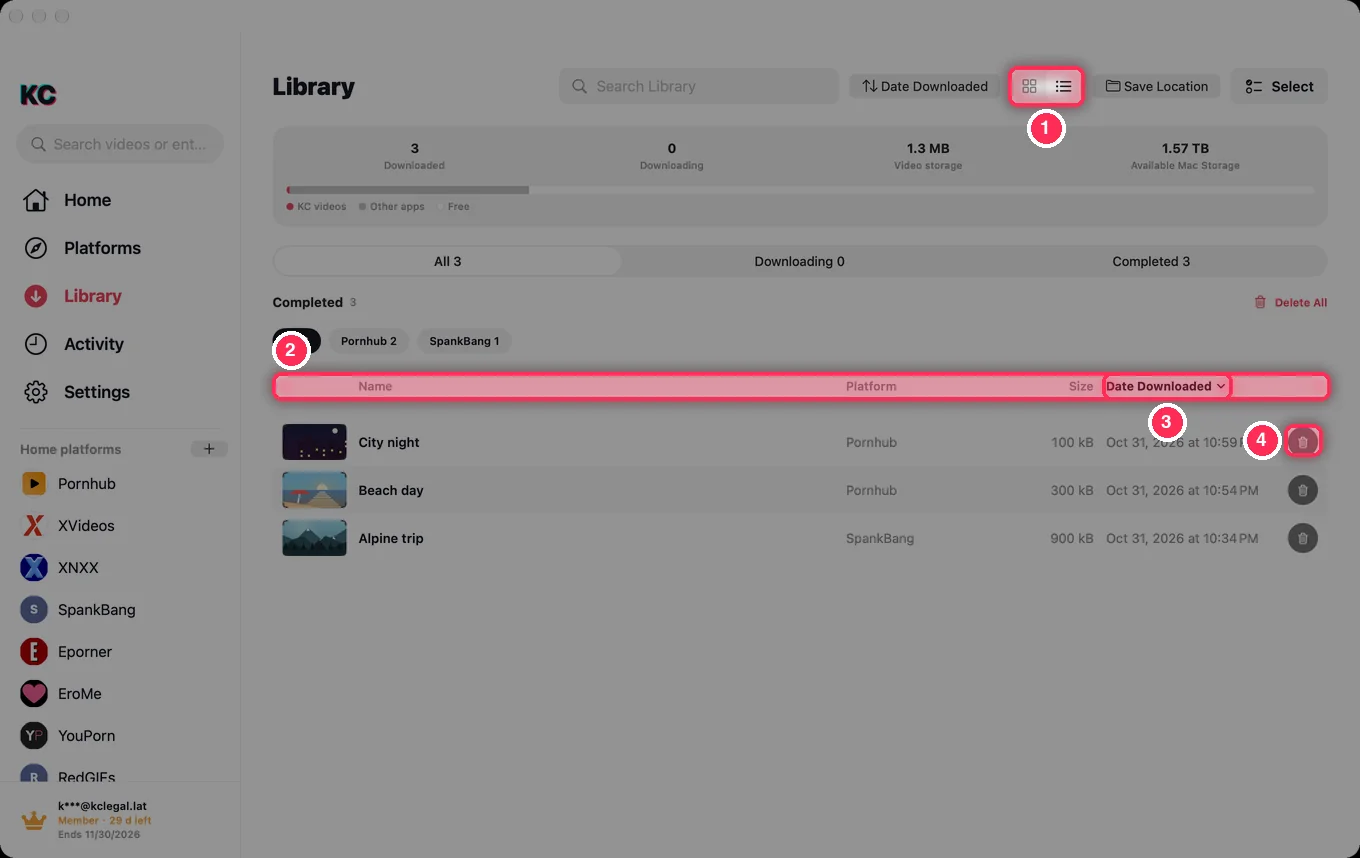
- The List button switches to the list.
- Click a column header (Name, Platform, Size, Date Downloaded) to sort by it.
- Click the same header again to reverse the order; the arrow shows which way it goes.
- Delete a video, after a confirmation.
The sort button offers the same choices in both views: Sort By Name, Platform, Date Downloaded (the default, newest first) or Size, Ascending or Descending, and Group By Platform or Date Downloaded (Today, Yesterday, Previous 7 Days, Previous 30 Days, Earlier).
Watch offline
Click a video to play it. Saved videos play from your Mac, so no connection and no sign-in are needed. The player keys work as usual: Space to pause, ← → to skip 10 seconds, M to mute and Esc to close.
Save location and disk space
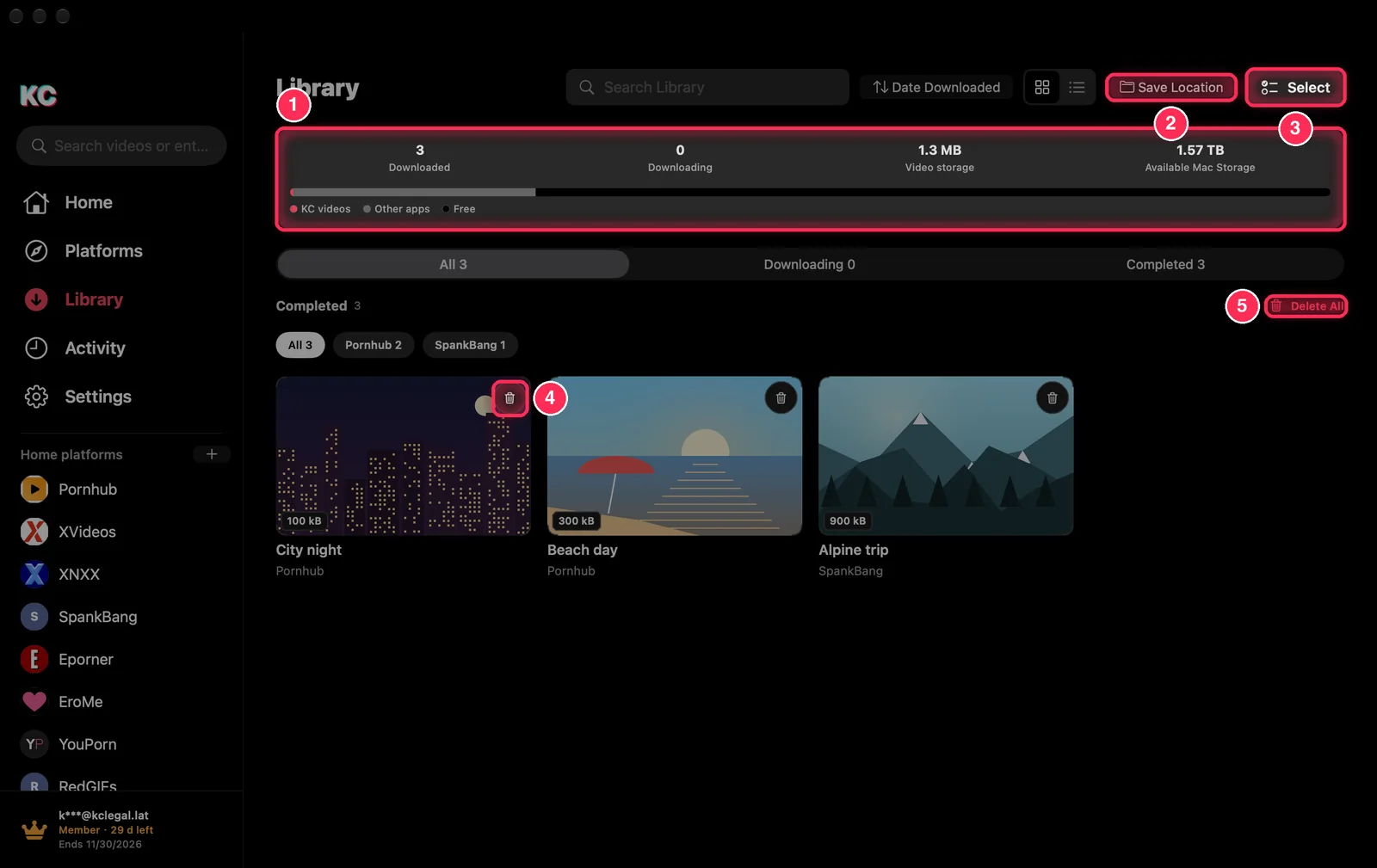
- Storage: videos saved, downloading, the space your videos use and the space left on your Mac; the bar compares KC videos, other apps and free space.
- Save Location chooses where new downloads go: KC Library (in the app) (the default), KC in the Downloads folder, or Choose Folder…. Folder per Platform keeps each site in its own folder; Show in Finder opens the folder.
- Select picks several videos to share, make private or delete together (Select All picks them all).
- The bin on a video deletes that one.
- Delete All deletes every saved video except private ones.
Deleting removes the file from your Mac and cannot be undone. If the folder you chose is on an external drive that is not connected, KC tells you.
Private videos
Right-click a video and choose Make private, or select several and choose Make private. Private videos leave the Library and appear only under Private on the Activity page, after Touch ID or your Mac login password. The guide Privacy, history and settings shows where.
Common questions
Do saved videos need an account to play?
No. During the trial or a membership, saved videos play signed in or not, and they stay on your Mac after the trial ends.
Are my videos uploaded?
No. Videos, likes, favorites and watch history stay on your Mac.
Where is my watch history?
On the Activity page, under Watch history. Favorites, likes and the download log have their own tabs there.